Would you like to see an impressive 3X boost in DAU&MAU in your app performance reports? You’re in the right place.
Enhance user engagement with automated push notification campaigns, just as Beach Bum has done.
Let’s explore two effective ways to increase mobile app usage in detail so that you can implement them into your engagement strategy.
Strategy 1: Increase app usage frequency ➡️ Integrate seamlessly into users’ daily routines
Encouraging users to develop a habit of using your app may seem challenging, but as a product manager, you have a few aces in the hole to help you succeed. Namely, you can send push notifications and email campaigns to invite users back to your app.
Let’s explore six tactics you can implement.
1.Establish a recurring schedule for sending push notifications to all users
You help users develop a habit by sending push notifications at a specific time. After a while, they will anticipate your push notifications.
Let’s look at four examples from Babbel, a language-learning app that invites users to kick off their day with a morning lesson.
💡Take note of their copy—it’s inviting, friendly, and engaging! Keep this idea in mind when writing engaging push messages for your users:

Creating a push notification campaign like Babbel’s is a breeze with Pushwoosh. You would design a very simple campaign flow in the Customer Journey Builder:

Schedule this campaign to autorun daily to avoid adding another task to your to-do list:

Done! You’ve reaped the lowest-hanging fruit.🍎
2.Tailor push notifications to user behavior
Imagine this: You are a product manager at Scribd, a digital document library. Thanks to your favorite behavior-tracking tool, you know that one of your users has recently started reading “Tender is the Night” by F. Scott Fitzgerald. This insight allows you to send a push notification asking if the user is interested in diving into another classic book.
Look closely at this push notification. It is engineered to drive the user back to Scribd because it offers personalized information based on their actions:

Before launching a push notification campaign similar to Scribd’s, you need a way to segment users. You can use our default events, which were developed based on customer feedback. Alternatively, integrate your behavior-tracking tool with Pushwoosh. Complete the process in five or six steps and start sending events for segmentation on the Pushwoosh platform.
To create the campaign, you will need to set up a trigger-based audience entry that targets users who have opened the app today. Next, include a “wait for trigger” element to identify those who have started reading classic literature. Take a look at this simplified version of the campaign for reference:


3.Send push notifications based on user preferences
Ask users when they would like to hear from you to increase the value of your push notifications. Let’s explore two examples: Calm, a popular app for meditation and sleep, and PunchLab, a boxing training app.
Both apps allow users to customize notifications according to their schedules. However, Calm goes further by suggesting optimal meditation times, such as right after waking up or before going to bed. They also encourage users to practice mindfulness every day for the best results:

If you want to send push notifications based on user preferences using Pushwoosh, here are the five steps you need to follow:
-
Target new users: Focus on users opening your app for the first time.
-
In-app message: Display an in-app message prompting users to set their notification schedule.
-
Tag opted-in users: Tag the users who choose to receive push notifications at that time.
-
Follow up with non-opted-in users: For those who haven’t opted in, show the opt-in message the next time they open your app.
-
Final Tagging: Tag everyone who has opted in during this follow-up and complete the campaign.
Here is a preview of what your campaign will look like:

4.Send personalized reminders
What about situations where you need to send a push notification at a specific and personalized time, such as reminding users about the live event they signed up for? You’d use the dynamic Time Delay feature to remind them of the event.
Before diving into the details of setting up personalized notification reminders, let’s examine how Insight Timer, a meditation app with over 700,000 reviews, sends personalized reminders about live events.
Ten minutes before the event, users receive a push notification reminder. Note how they have customized the push by featuring the teacher’s photo (🤫, with Pushwoosh, you can also add pictures to push notifications).
Insight Timer pairs these notifications with in-app messages to provide more details about the tools they will need for the practice:

Live events allow users to connect more deeply with teachers and the community, fostering a true sense of belonging.
To create a campaign similar to this one using Pushwoosh, first, target users who have registered for the event. Then, schedule a push notification to be sent one hour before the event begins. To optimize the campaign, you can do two things:
-
Check whether the users who opened the push notification attended the event.
-
Email users who did not open the push notification 30 minutes before the event started and monitor whether they joined the event afterward, just like we did in the campaign below:

5.Send push notifications based on in-app community activities
If you have an engaged community, you can nudge users with push notifications about their friends’ and rivals’ in-app activity. Who could resist a little peer pressure?
Let’s explore how Duolingo, a language-learning app that offers bite-sized lessons, uses social interactions to motivate users to keep coming back to their learning journey.
This push notification taps into the user’s competitive spirit, encouraging them to reclaim their lost spot in a league:

Let’s reverse-engineer Duolingo’s push notification campaign that updates users about their friends’ activities.
Begin the campaign with an API-based entry point, targeting a specific segment of users who have lost their spot in a league. Next, send an initial personalized push notification that includes dynamic content. This dynamic content will vary for each user, reflecting their individual leagues and lost spots. After sending this notification, wait for four hours before either sending a second push notification or displaying an in-app message encouraging those who opened the app to start a lesson:

6.Email last-chance reminders
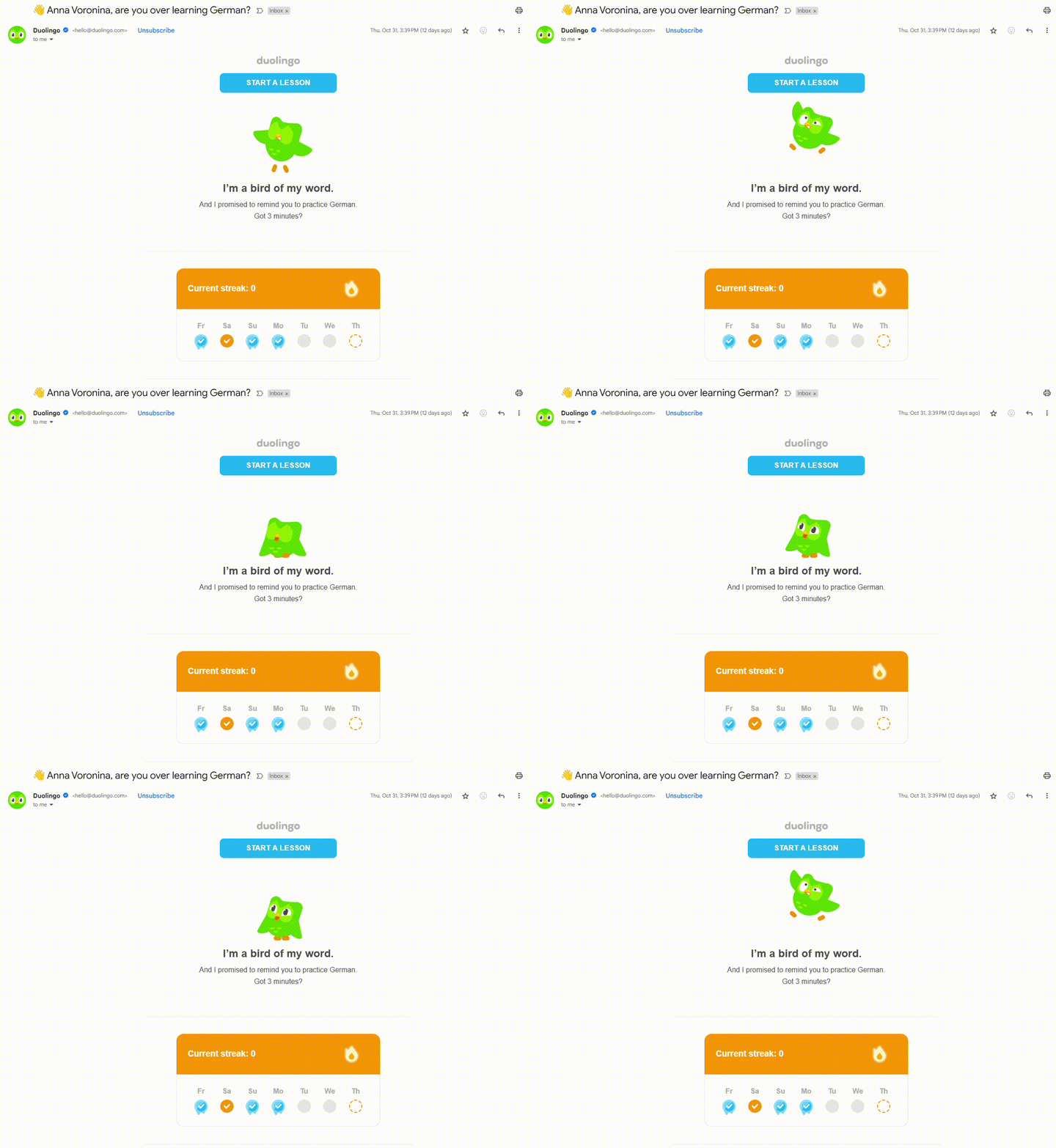
Some users may not respond to push notifications for various reasons. They might have disabled them completely or been too busy to engage. In these situations, sending an email can effectively encourage users to return to the app. Let’s take a look at how Duolingo reconnects with lapsed users.
Personalization plays a crucial role, and Duolingo excels in this area. They not only include the user’s name but also remind them of the number of days they have been off from learning their chosen language.
Moreover, Duolingo effectively directs attention to the CTA. You can see how Duo flaps its wings toward the button, encouraging users to click on it:
To re-engage inactive app users, you can use our re-engagement email template and let them know that they’re missing in-app activity. You can personalize the template based on your needs using tags, just like we did in the example below:
Strategy 2: Increase session duration length
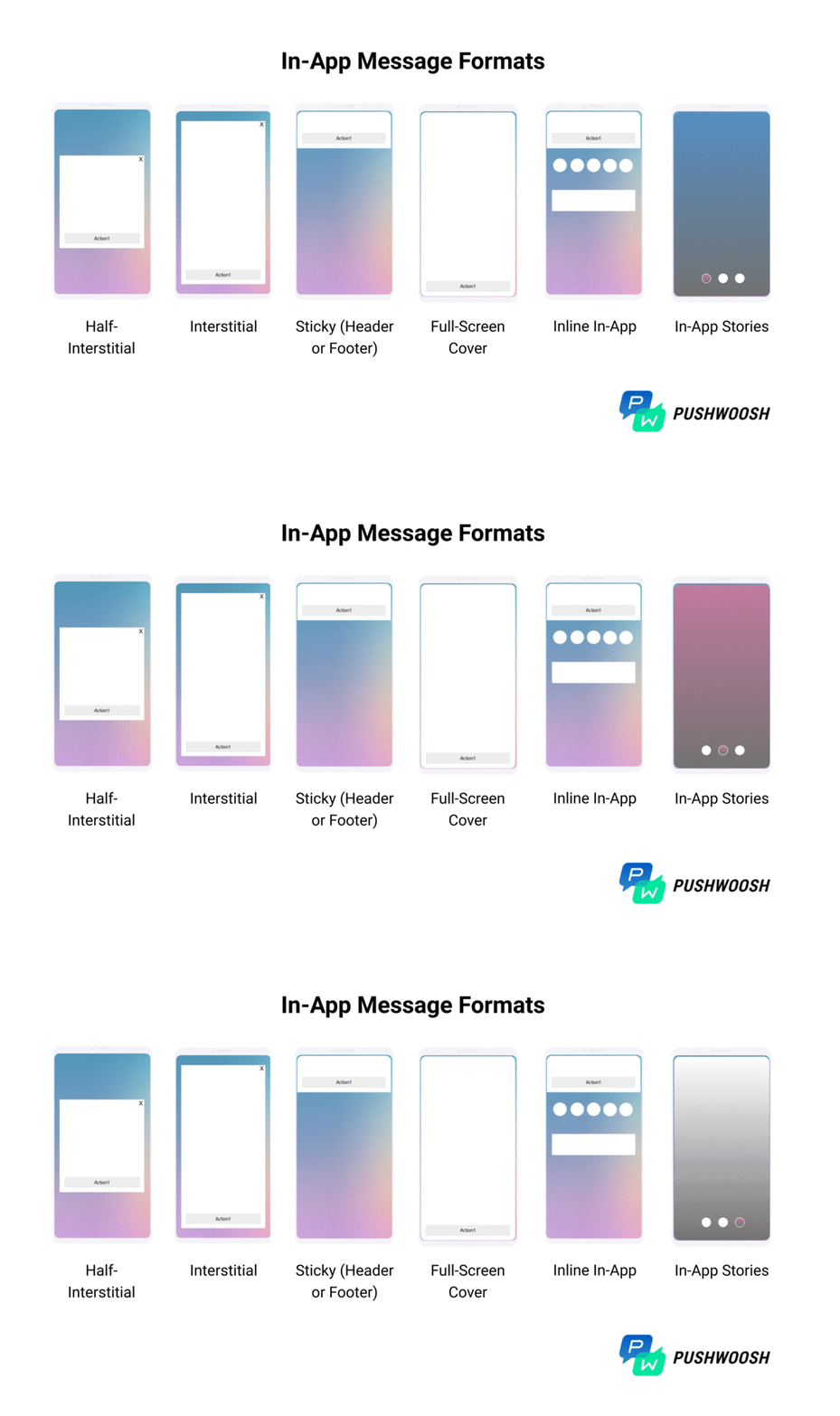
To keep users engaged and encourage longer sessions, use in-app messaging. In-apps come in different forms, each serving a distinct purpose:
- Half-interstitials and interstitials are great for notification opt-ins, surveys, and important announcements.
- Modals (sticky header or footer) excel at prompting push notification subscriptions.
- Full-screen covers are suitable for onboarding, tutorials, and subscription prompts.
- Inline in-apps allow users to take actions without leaving the screen they’re on.
- In-app stories instantly grab user focus. Stories often include polls, quizzes, or swipe-ups, encouraging user interaction.
Here’s a closer look at the most common in-app message formats:
If you’re promoting new features or upgrades or seeking feedback, Pushwoosh In-App Builder simplifies the creation of in-app messages. Choose one of the pre-made templates or design your own with the drag-and-drop interface:

1.Drive feature discovery with in-app messages
Encourage users to adopt new features in your app with in-app messages, effectively highlighting the latest functionality and accelerating its adoption. ASOS, a shopping app, uses a broad range of in-app messaging formats to promote new features: full-screen, sticky, and inline in-apps:

💡 If you’re unsure whether your entire user base will benefit from a new feature, you can present it to a segment of users through in-app messages and observe their reactions. This approach can help you roll out features that bring the most significant value.
2.Personalize user onboarding
Use in-app messages to personalize user onboarding. Ask questions to understand users’ expectations for the app.
For example, MoneyCoach, a personal finance app, prompts users to share their expectations to personalize their experience. These responses also help the team gain insights into user needs and impact the development of new features based on feedback:

Pushwoosh customers use Default Events to identify new users and implement trigger-based entries to initiate targeted onboarding campaigns. By automating these campaigns based on specific user actions, teams can provide personalized guidance to new users. This not only improves the overall onboarding experience but also boosts the chances of retaining these users in the long run:

3. Encourage users to upgrade
If you operate a subscription-based app, you can promote upgrades and, naturally, have users stay longer in the app they’ve paid for. Display in-app messages that highlight the benefits of upgrading to a premium subscription. Check out how Lightroom uses in-app messages to showcase premium features:

If you’re looking to target users who have activated the free trial but haven’t made a purchase yet, you can try to encourage them to subscribe to a plan with a sequence of in-app messages. Here’s how this user segment appears on Pushwoosh:

You can create custom segments based on standard or custom tags and events. For example, target users who subscribed just over a year ago to encourage an upgrade.
4. Incorporate interactive surveys
Incorporate engaging elements like surveys to encourage users to interact longer. Make sure to include space for free-form feedback, allowing users to express their thoughts freely.
Insight Timer, a meditation app, uses a five-star survey with a sticky in-app message that darkens the background, helping to focus users’ attention on the survey.
Captivating insight: This survey is displayed only to users who have engaged and listened to the meditation from start to finish:

Similarly, you can segment and target users who’ve completed a meaningful action in your app, such as making a purchase, before asking them to leave a review. You can use our Default Events to segment users properly and request feedback at the right time.
Increased app usage: what to expect?
With a user engagement strategy set in action, you can achieve significant growth in your app’s session length and frequency, leading to higher DAU and MAU.
For example, our customer Bladestorm boosted the number of MAU by 16.62% and kept players engaged within the app.
With Pushwoosh’s user-friendly tools, achieving personalized user engagement is simple and efficient. Start building stronger connections with your users today and witness your app’s performance soar.