It’s no secret that we at Pushwoosh are avid fans of behavior-based communication. Yet, scheduled campaigns still have their time and place. Scheduling options are indispensable whenever you need to time your messaging to the customer’s personal schedule, important dates, and routine calendar. You can find various features for time-based campaigns in Pushwoosh Customer Journey Builder; what’s even better, you can easily combine them with trigger events. Read on to discover how to make perfectly-timed and effective campaigns with our scheduling tools.
Schedule campaigns for the best time with Pushwoosh Customer Journey Builder
There are multiple ways to plan perfectly-timed communications in Pushwoosh Customer Journey Builder. These features have been there for a while, but have you tried all of them?
NEW: Send messages at the Best time to maximize CTRs and conversions
Pushwoosh’s Best time to send feature is a powerful tool that allows you to send your messages at the best possible time for each individual user.
The feature analyzes your audience’s engagement patterns and sends the message at the moment when each user is most likely to engage with it. Doing so can significantly improve your message CTRs and conversion rates.
Best time to send’ is available from the Pushwoosh Customer Journey Builder interface, so the next time you plan a campaign, you can leave scheduling to our intelligent algorithm.

**Best for:** sending messages that are not time-sensitive but rather are intended to drive engagement over a period of time. For example, long-term promotional messages, content updates, and digests can benefit from being sent at the Best time.
🤩Learn how to send a message at the Best time
Time your messaging to users’ personal schedules and events with a dynamic Time Delay
What about the cases when you need to send a message at a personalized and very specific time, such as when you need to remind a customer of their next visit? This is when dynamic Time Delay is an absolute must-use.
This scheduling feature allows you to send a push notification, email or SMS:
- after a certain time has passed since the user’s last action
or
- a specified time before the scheduled action.
Best for: sending automated personal reminders of upcoming and yet-to-be-scheduled appointments; gathering feedback after a visit; wishing happy birthday; congratulating with in-app achievements.
 💅🏻Learn
how to use the
dynamic Time Delay
from our documentation
💅🏻Learn
how to use the
dynamic Time Delay
from our documentation
Schedule further communications for selected days, dates, and time with other options for Time Delay
Besides timing communications to user behavior, you can take full control of your messaging schedule:
- Wait a certain amount of time before you continue communicating with a user – for this, you will set a fixed duration for your Time Delay.
For example, it may only be reasonable to let a shopper reflect on their chosen items for one day (fixed duration) and nudge them to make a purchase at the end of this time.
- Schedule your message for a specific time – for example, at 8 am, you will autosend a reminder of an event your subscriber asked for, or deliver a content digest.

- Set a date when your message will be sent – it may be the date when sales start, a new in-game element is released or when a specific holiday is celebrated.
- Select the day of the week to send your Friday hot offer or pause all the communications for the weekend.
Bonus: you can also set the exact hour in this Time Delay option!
💡 Tip: Create an associative link “a day of the week – a special offer from X app” and see your CTRs reach up to 28.21%.-,Timezone%20settings,-let%20you%20define) for these scheduled push notifications with offers!
Best for: when you can estimate the best time to send your following message on your own – either from analyzing your customer journey or by common sense.
Set a Fixed waiting period to send your next communication even if the target event was triggered
Imagine you’re a car rental service that has determined a calibrated frequency for sending out new offers: once a week. So every Monday, you send a push notification nudging your app users to rent a car for whatever occasion they have this week.
To make this scenario possible in Pushwoosh Customer Journey Builder, you can set a Time Delay for seven days. Brilliantly simple!
But you also want to distinguish between the users who seize your offer and those who don’t. You may need this information for analytics purposes or to differentiate your further communications – say, mention “a 10% discount for another rent” in a message to those customers who used your service the previous week.
So you face a dilemma:
- If you simply set a Time Delay, you won’t keep track of the triggered event.
- If you choose to Wait for Trigger instead, your next message will be automatically sent as soon as the event is triggered.
Neither option suits you…
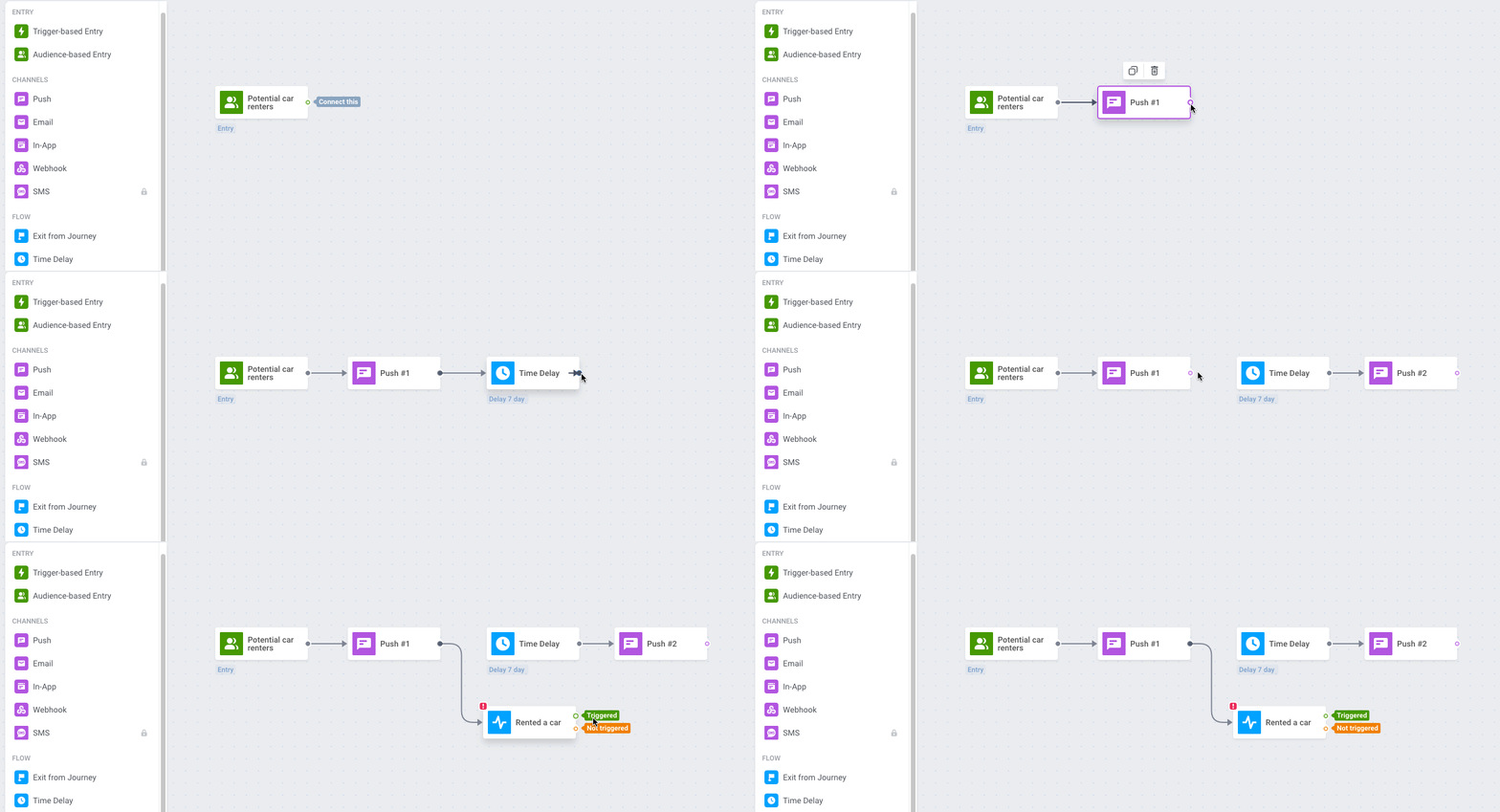
Luckily, now there is a fix for that!
It is now possible to take a triggered event (or lack thereof) into account and keep waiting for the set period of delay before sending your next offer.
All you need to do is to drag the slider next to “Fixed waiting period”: this will ensure your next offer is only sent after the specified amount of time, not immediately after the event is triggered.
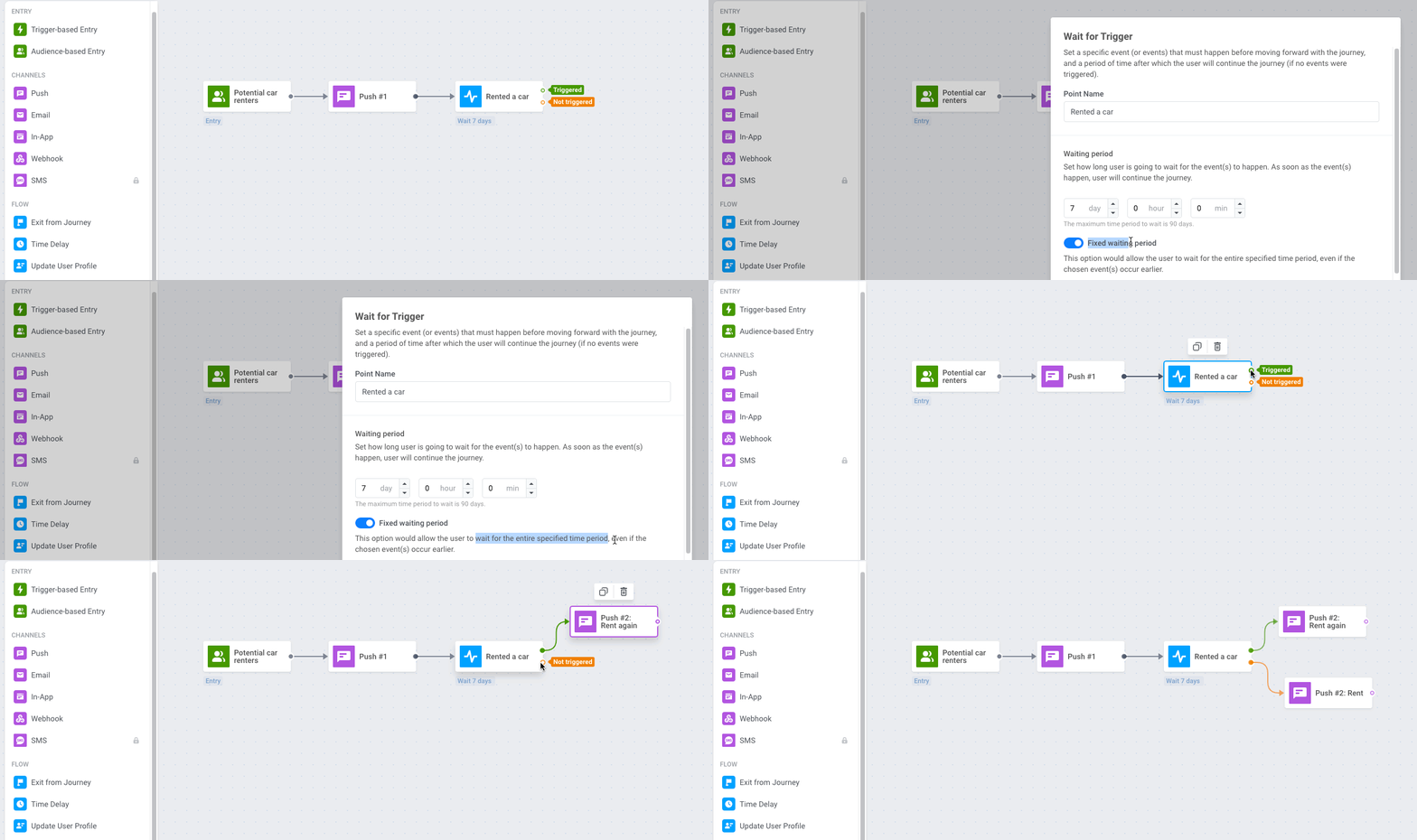
Try the functionality you won’t find in other campaign builders!
Send unique offers at a chosen scheduled time
The options above are made for the cases when you continue communication with your audience segment. But what are you supposed to do when you need to start messaging at a specific time? For this scenario, you have a Scheduled Launch option in the Audience-based entry element.
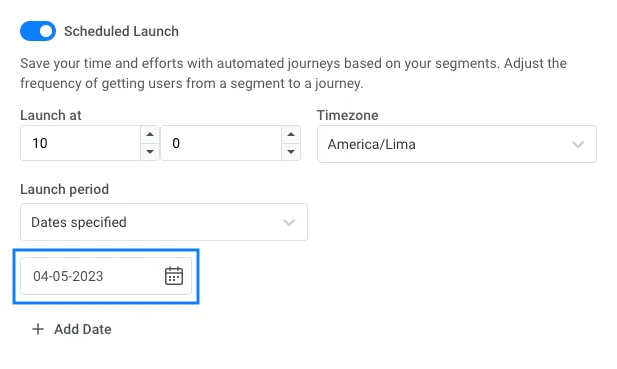
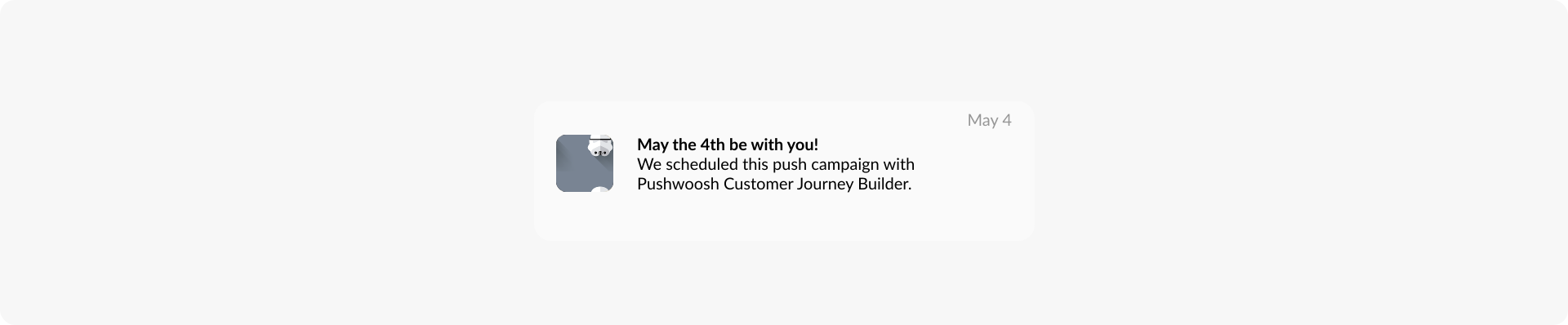
**Best for:** sending offers dedicated to special dates, targeting messages at users living in a timezone different from yours, and simply scheduling your communications instead of waiting to send them manually – especially when you can be busy doing other things.
🍕Learn how scheduled messaging can help food delivery apps to drive sales at least popular times and boost revenue on special dates
Send repeating offers on a schedule
A nice thing about Pushwoosh’s Scheduled Launch: you can set it to send repeating push notifications and emails on your selected dates and days of the week:
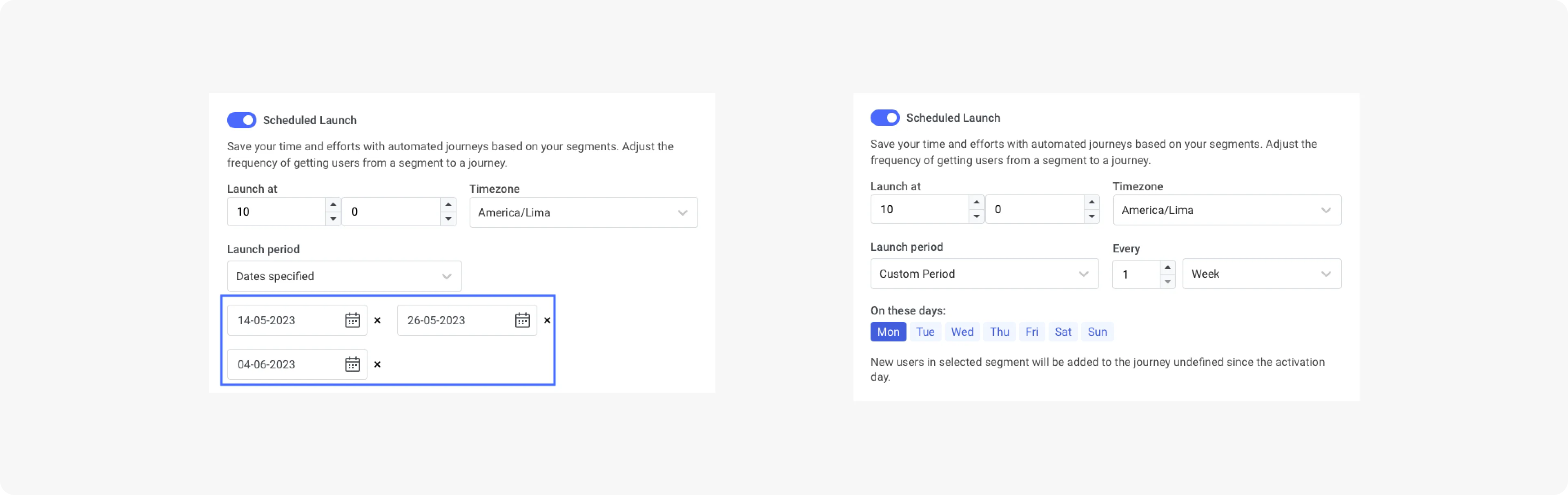
Best for: engaging your audience with weekly offers, like our customers Bladestorm (the game app developer boosted its MAU by 16.62% with regular offers!) and Telepizza (the food delivery app is loved for its Crazy Wednesdays)
Another strategy is to set repeating communications, aka reminders, to be sent every day or every week to make users accustomed to:
- Reading your morning/weekly digest (if you’re a news & media app);
- Training/taking a lesson in your subscription-based app;
- Playing your game on the way to/from work.
Scheduled Launch will help you out in these cases too!
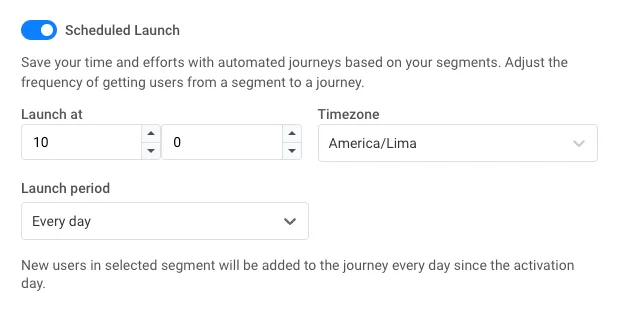
Best for: subscription-based, gaming, and media apps that need to instill a habit of opening their app daily/weekly/at certain times of the day
🔄Explore more ways to use repeating messages in your campaigns
Ensure your relevance across timezones
When it comes to sending messages to users in different parts of the world, timezones can be a challenge. But with Pushwoosh, it’s easy to ensure your communications are delivered on time for each user, wherever they are.
When you set a Time Delay for your next message, take care of Timezone settings.-,Timezone%20settings,-let%20you%20define). This way, you can stay reassured that your communication will be delivered at the right time by the user device’s timezone. No awkward situation should occur when your live morning yoga reminder arrives when the session is long over.
Best for: sending messages to international users at the right time without your even thinking about it – it’s all done automatically by default in Pushwoosh.
Respect users’ Silent Hours
With the Silent Hours feature in Pushwoosh Customer Journey Builder, you can define a specific time range during which you won’t send any messages to your users, ensuring that you’re not intruding on their personal time.
The most evident use case: you will use Silent Hours for the nighttime, respecting your audience’s time for rest.
In addition, you can utilize Silent Hours to make a pause in a messaging campaign – as an alternative to the Time Delay feature.
Best for: campaigns comprising a series of messages over several days – with Silent Hours, you can deliver messages effectively and avoid disturbing users at odd hours.
Set up Frequency Capping
It’s awkward when you tell someone a story, and they respond: “You’ve already said that”. It may be even worse when you send the same marketing message to your customer for the second or third time in a row. To avoid repeating yourself and annoying the customer, set Frequency Capping.
This feature in Pushwoosh Customer Journey Builder limits the number of times a user can enter the campaign within a specified period. So even if they trigger the entry event a few times – say, Add a Product x4 – they will only receive one push related to this event.
Best for: campaigns based on trigger events that might occur a few times in a short timeframe.
Send messages in response to triggered events
Setting triggered campaigns is a whole different story. Technically, we can view trigger-based communications as a sort of time-based campaigns, as they define the best time to start messaging as the time when a particular user triggered a specific event… But we’d rather dedicate another blog post to it. Stay tuned!
Make the most of scheduled campaigns with Pushwoosh Customer Journey Builder
Scheduling features are there to facilitate and streamline your marketing efforts. As Pushwoosh customers’ experience has proved, Customer Journey Builder provides all the tools for effective work at your fingertips. Be guided by the usage tips above and plan the most relevant and effective time-based campaigns with Pushwoosh.
Need access to Pushwoosh Customer Journey Builder? Get in touch with our team to discuss an upgrade.